

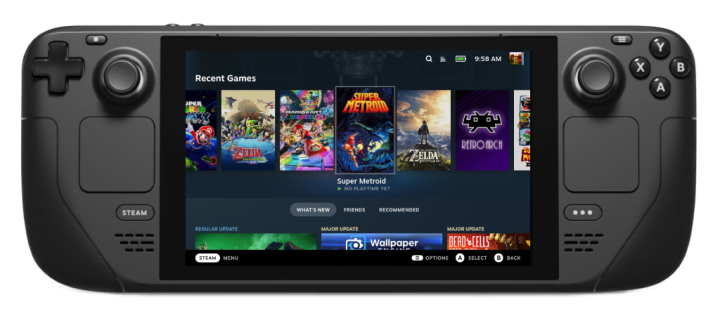
Steam Deck Emulation Starter Guide
Updated: March 16, 2026

Last updated: 07APR2025 (see Changelog for details)
Valve’s Steam Deck is the perfect storm of handhelds: it has an exceptional price-to-performance ratio, a large game library thanks to its Steam integration, and it is becoming more readily available every month. In this guide I’ll show you how to play your favorite retro (and modern) game systems via software emulation.
This guide will primarily use an app called EmuDeck to set up your emulation experience, but I will also touch on other solutions like RetroDeck and Batocera. If you are looking for a general setup guide for the Steam Deck itself, I recommend this comprehensive Steam Deck guide from GitHub user mikeroyal.
Table of Contents


EmuDeck vs Batocera vs RetroDeck vs EmulationStation
Let’s take a quick look at some of your emulation options on the Steam Deck.
EmuDeck is a tool that integrates many functions into one: it will download emulators from their official sources, pre-configure your settings and hotkeys, and work together with EmulationStation and the Steam ROM Manager. It’s not an “app” in the strictest sense, but a collection of clever scripts that take care of all the manual installation and configuration for you. I’ve seen some concerns about allowing an app to install items on your Steam Deck, but EmuDeck does not require sudo/root access to work, and only installs the same file systems that you would be installing if you installed the emulators manually. However, if you’d rather have a self-contained solution, check out Batocera or RetroDeck.
Batocera is a custom Linux operating system that is focused on game emulation. It is completely self-contained and bootable from a variety of formats. This means you can load Batocera on a microSD card, flash drive, or external hard drive and boot it from there. As an example, you could use your Steam Deck primarily for PC games, and when you are ready to do some emulation, you can just add the Batocera SD card, boot into the card, and start playing games. This is an excellent setup if you want to separate your SteamOS PC gaming experience and your retro game emulation.
RetroDeck is an all-in-one emulation solution that uses EmulationStation as its main interface. Because it is self-contained, it will behave as a single app with all of its emulators pre-installed and configured. This is a great solution if you just want a simple emulation experience that you can access directly from your SteamOS environment. Moreover, the app is available as a FlatPak directly in the Discover app via Desktop Mode on your Steam Deck, making the installation process super easy. RetroDeck is in active development and not yet in a final release state.
EmulationStation is a frontend that will provide you with a self-contained user interface to browse and launch your favorite retro games. The version found on the Steam Deck is known as EmulationStation-DE (Desktop Edition, shortened to ES-DE). It can be installed independently by downloading the latest AppImage and installing it on your Steam Deck, or it comes bundled within the EmuDeck or RetroDeck environments. ES-DE will auto-update itself, so if you remove or add ROMs to your folders, it will automatically catch those changes and it will reflect in the app the next time you boot ES-DE.
In the end, none of these options above are required to run emulation on the Steam Deck. If you’d like, you can manually install each individual emulator from the Discovery Store and configure them yourself, like you would on a Windows PC. Or you could install the EmulationStation Desktop Edition and set that up yourself, too. The tools above simply give you the option of making that process easier.

Recommended tools
Keyboard and mouse: Because we will use Desktop Mode to configure our emulation experience, it is sometimes easier to use a mouse and keyboard than trying to navigate everything using the Steam Deck’s trackpads and on-screen keyboard. Moreover, there are times when we’ll need to have the Steam app closed (like when using the Steam ROM Manager), which disables some of the more helpful trackpad controls.
If you have a Bluetooth keyboard and mouse, it’s easy enough to pair them and the pairing will persist between Game Mode and Desktop Mode (how convenient is that?). However, if you want something more portable, this keyboard from Rii is what I use. It is USB rechargeable, and has a 2.4GHz USB dongle for easy connection.
Steam Deck dock or USB-C hub: To make setup even easier, you can dock your Steam Deck to a monitor or TV and use it like a regular, boring PC. You can use a USB-C hub like this one from Anker, the official Valve Steam Deck Docking Station, or third-party docks like this one from iVoler. Here is a video where I compare four different dock solutions for the Steam Deck.

MicroSD card: Regardless of how you set up your Steam Deck for retro gaming, you will want to store your games somewhere. I recommend storing your retro games on a microSD card since the cards are relatively cheap and you can swap them out as needed. The size of the microSD card will depend on how you plan on using it. If you are going to use a single microSD card to store Steam games as well as your retro games, then a larger card might be best. If you’re going to use a dedicated microSD card for retro gaming, you can likely use something smaller (just bear in mind that CD-based and modern games take up more storage than old-school cartridge systems).
Note that when it comes to emulation, the read/write speeds on microSD card will generally not affect game loading or emulation speed, so storing games in the internal storage will likely not provide a performance boost. However, if you are going to use the card to store PC/Steam games too, then you will want to get a high-speed Class 2 (A2) card instead of a Class 1 (A1) card, since that can affect load times of PC games. I would recommend buying a microSD card from a reputable brand like SanDisk or Samsung to ensure longterm card integrity. Personally I use a 1TB SanDisk Extreme card in my Steam Deck, and I use it to store PC games as well as all of my emulated systems.